I have been reworking my home lab and home storage in the past few weeks. Something that was on my wishlist for a long time was to migrate from the Syncthing installation that I ran on Proxmox via LXC containers to a container-backed solution on TrueNAS. For this, I needed to migrate the data from the old installation to the new one and configure the new installation to use the migrated data. Luckily, that’s pretty straightforward.
What is syncthing
Syncthing is an open-source continuous file synchronization tool that lets you sync files across multiple devices without relying on cloud storage providers. Think of it as your own personal Dropbox, but for free and without/less privacy concerns. It uses peer-to-peer connections to keep your data in sync, which means your files go directly between your devices, no third-party servers involved 1. It’s cross-platform and runs on pretty much anything (including ARM devices, NAS boxes and even on my Kobo E-Reader). Check it out at: https://syncthing.net/
Setting up a Syncthing instance on TrueNAS
Setting up Syncthing on TrueNAS is pretty easy. I set up the application from the TrueNAS app store because that would make management and setup easy. I also chose to manage the storage myself using the Host Path option during the setup. This comes in handy for migrating the data later on and setting the right permissions.
Migrating Data
Note: You are about to work directly with your datastore. Be sure that you understand what you are doing and make backups and/ or offerings to your deity of choice. Side note, you can also migrate data by just sharing your existing folders to the new instance and letting them sync up, but this is way slower than manually copying them over.
Migrating the data is pretty straightforward. First, I stopped the old Syncthing instance and then copied the data from the old instance to the TrueNAS data folder using rsync or any other copy tool you like. You will need to migrate all the data from the different folders and the configuration to migrate an instance. When migrating the data folders, make sure the directory paths match (so /var/syncthing/FOLDER_NAME should be available on the same file path on the new installation). Note: these paths may be different for you depending on how you set up your shared folders.
Migrating Config
After all the data is migrated, you will need to transfer the config. The database syncthing uses will be rebuilt later when you restart syncthing.
To find out where your config lives, you can run syncthing paths, for example:
$ syncthing paths

Configuration file:
        /var/syncthing/config/config.xml

 Device private key & certificate files:
          /var/syncthing/config/key.pem
          /var/syncthing/config/cert.pem
...
Make sure to grab the config.xml, key.pem, and cert.pem and store them in the new Syncthing config folder.
Permissions
To make everything work, we will need to check the permissions, and check what permissions the new Syncthing instance gave out for the config folder:
$ stat /var/syncthing/config

  File: /var/syncthing/config
  Size: 10              Blocks: 17         IO Block: 1024   directory
Device: 39h/57d Inode: 571953      Links: 4
Access: (0700/drwx------)  Uid: (  568/ UNKNOWN)   Gid: (  568/ UNKNOWN)
Access: 2025-08-07 18:38:06.877295202 +0200
Modify: 2026-01-04 17:20:42.464967911 +0100
Change: 2026-01-04 17:20:42.464967911 +0100
And modify all the folders to match:
chown -R 568:568 /var/syncthing/*
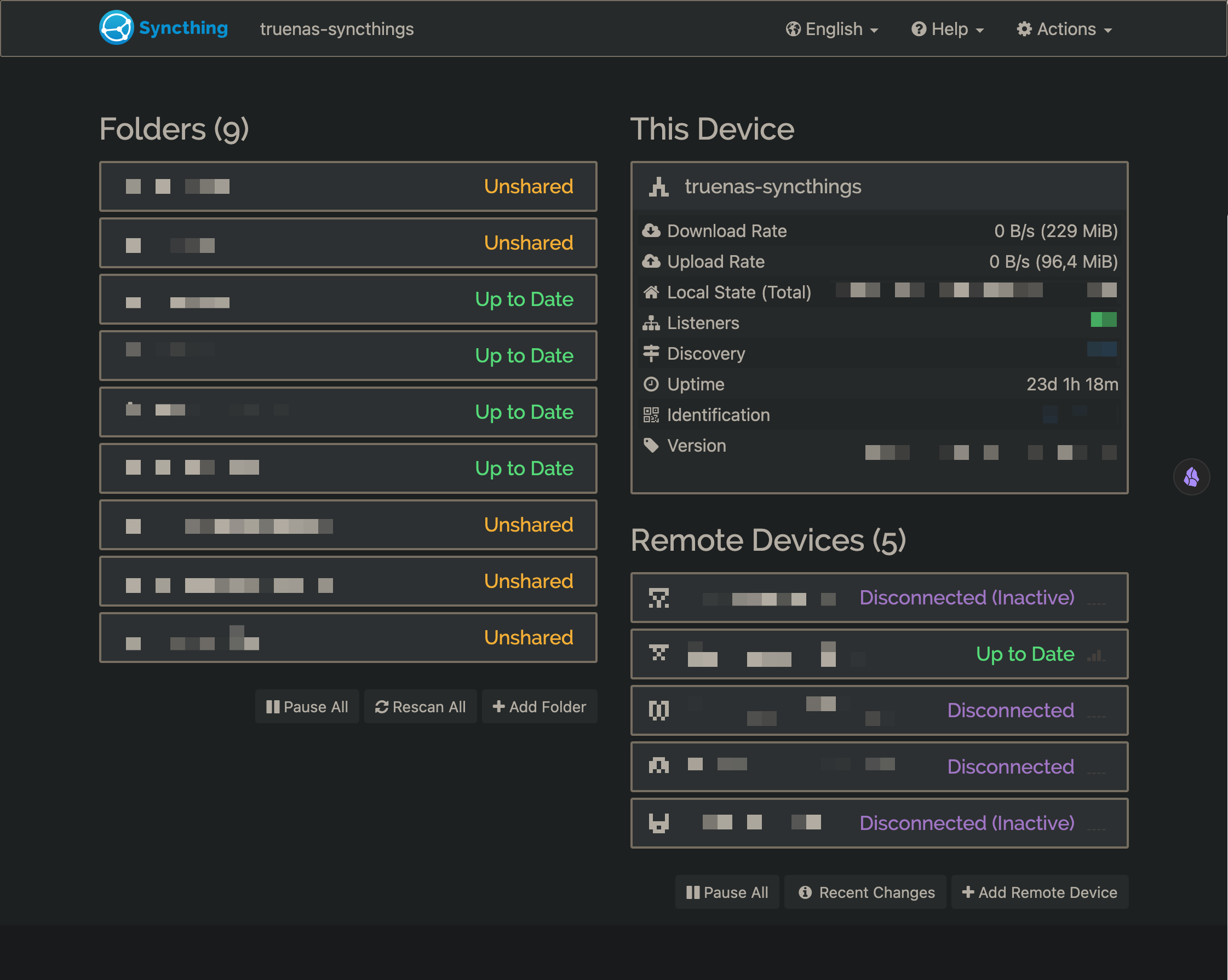
Now your new instance should come online after a restart of the app. You should be able to log in to the new Syncthing instance. Don’t forget to update the URL in the config.xml.
-
Syncthing uses free to use discovery servers to link your devices and facilitate discovery. You can choose to host these yourself aswel, see: https://docs.syncthing.net/users/strelaysrv.html ↩
Found this useful? Consider sponsoring me or buying me a cup of coffee at KoFi or get notified when I share new things